CS-Cart Vendor Subdomain allows each vendor in your CS-Cart Multi-Vendor store to have their own unique subdomain.
Customers can directly visit these subdomains to browse and buy products from specific vendors.
The CS-Cart Vendor Subdomain is a powerful extension that lets sellers create a dedicated subdomain for their products on a Multi-Vendor site.
This add-on works in conjunction with the default CS-Cart Vendor Plans and SEO add-ons.
Vendors can create subdomains from their panel based on the CS-Cart vendor plan they choose.
The sellers can insert any keyword into the URL without creating and registering a new website.
Important Note –
To use this add-on, make sure that the default add-ons Vendor Plans and SEO are installed and active.
Also, to configure subdomains, you must create a wildcard A-record for your domain in your hosting control panel. Then, map it to your root directory.
Please refer to: https://developers.cloudflare.com/dns/manage-dns-records/reference/wildcard-dns-records/
Check the overview of the module CS-Cart Vendor Subdomain
Features
-
Easy for the admin to use and manage.
-
Vendors can have their own subdomains.
-
The admin can assign subdomains to sellers based on store views.
-
Each vendor’s page has its own subdomain URL.
-
Vendor subdomain URLs are easy to read and identify.
-
Customers can directly visit a vendor’s subdomain to purchase products.
-
Subdomains can be configured to display only the vendor’s products.
-
Integrated with Vendor Plans, allowing subdomain features based on the vendor’s plan.
-
Admin can add or edit vendor store URLs.
-
Sellers can set their subdomain store URL during registration on the front end.
-
Sellers need admin approval to enable certain public pages on their subdomain, such as wishlist, comparison list, view cart, and checkout.
-
Admin can allow or block public pages on vendor subdomains from the vendor subdomain list.
Installation
After downloading the CS-Cart Vendor Subdomain add-on, you’ll get one ZIP file, one install.txt file, and a User Guide document.
Read it carefully for proper configuration.
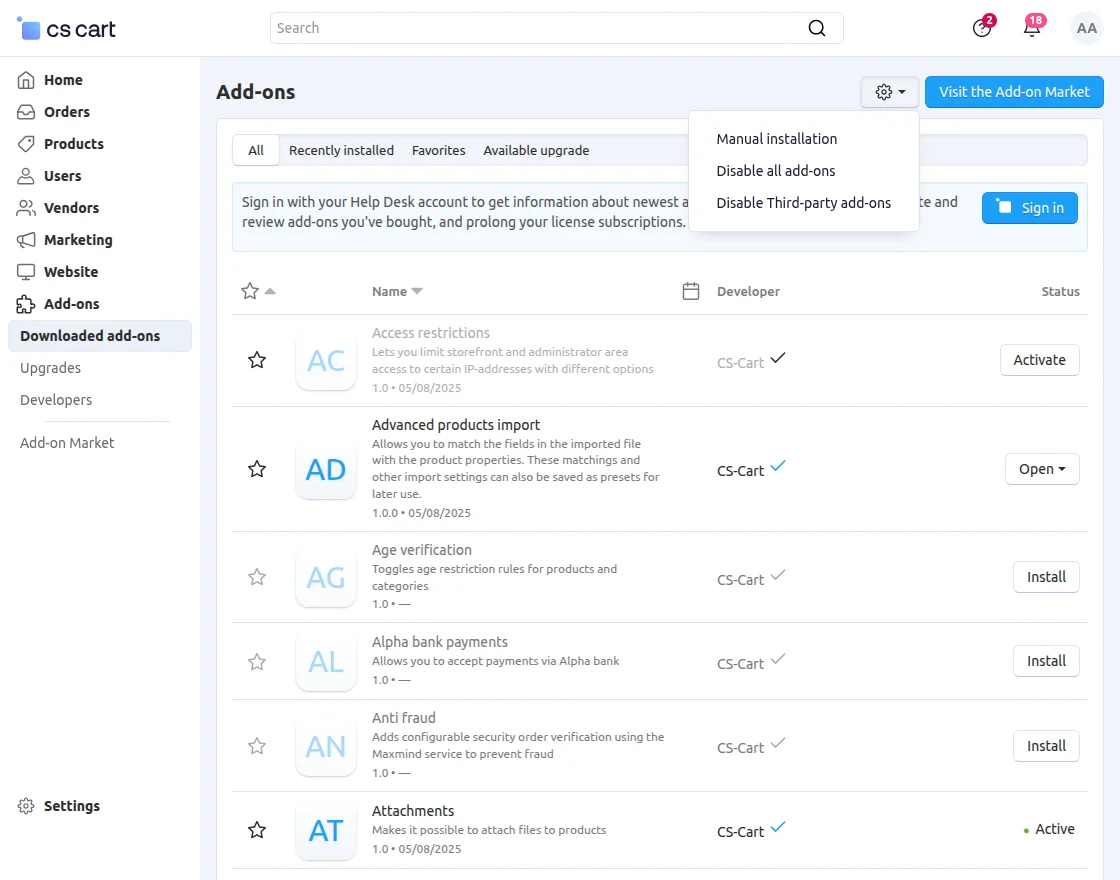
Go to Manage Add-ons, and click on “Manual Installation” as shown below in the snapshot.
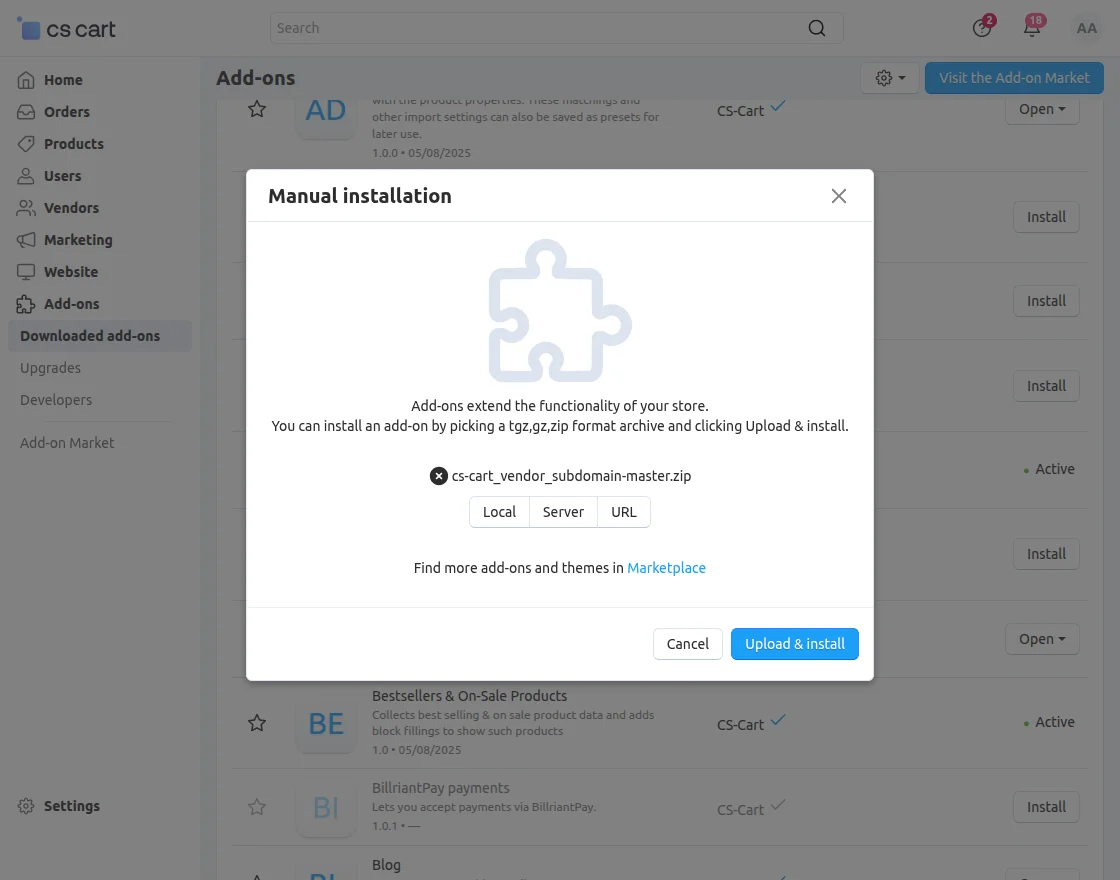
Click on “Local” to browse the zip file, and then click on “Upload & Install” as shown below in the snapshot.
Add-on Configuration
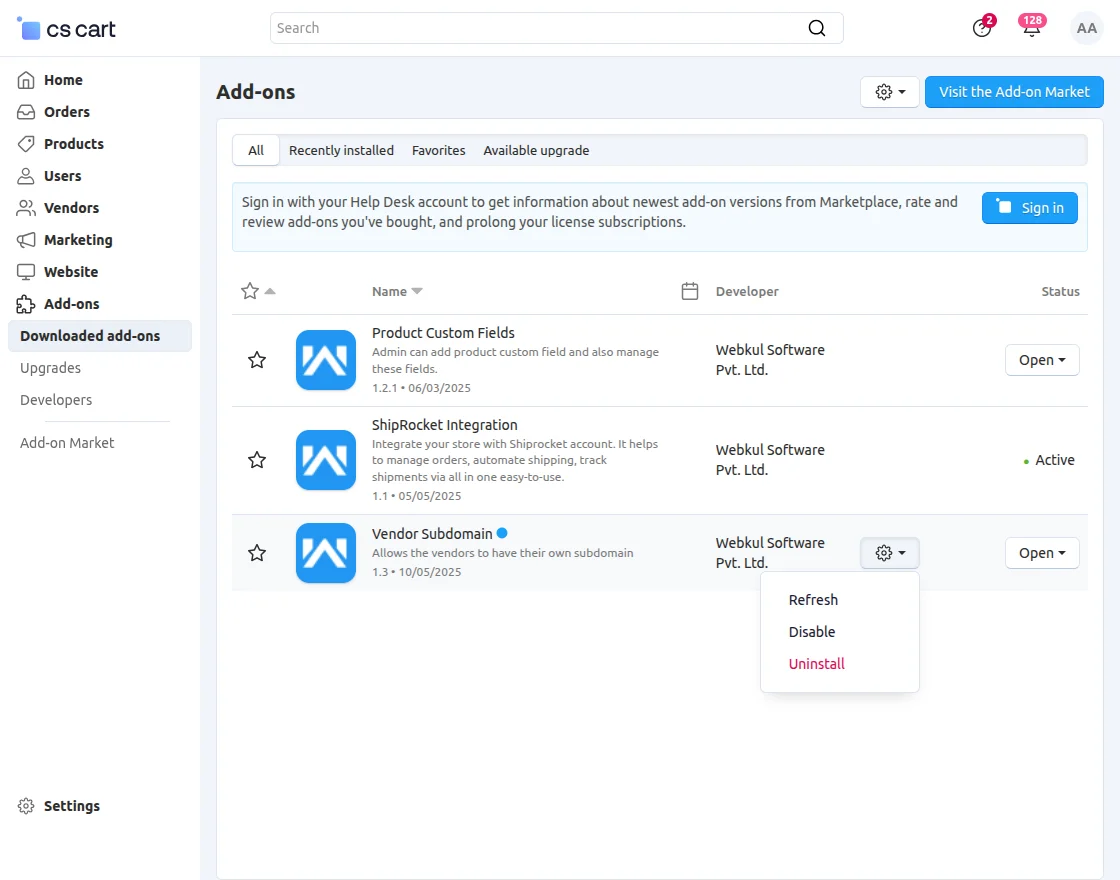
After installing the add-on, you will find CS-Cart Vendor Subdomain in the list of available add-ons. Next, configure the settings.
Click on “settings” to enable, disable, install, or refresh.
Make sure the add-on is activated, as shown in the snapshot below.
Module Configuration | Admin
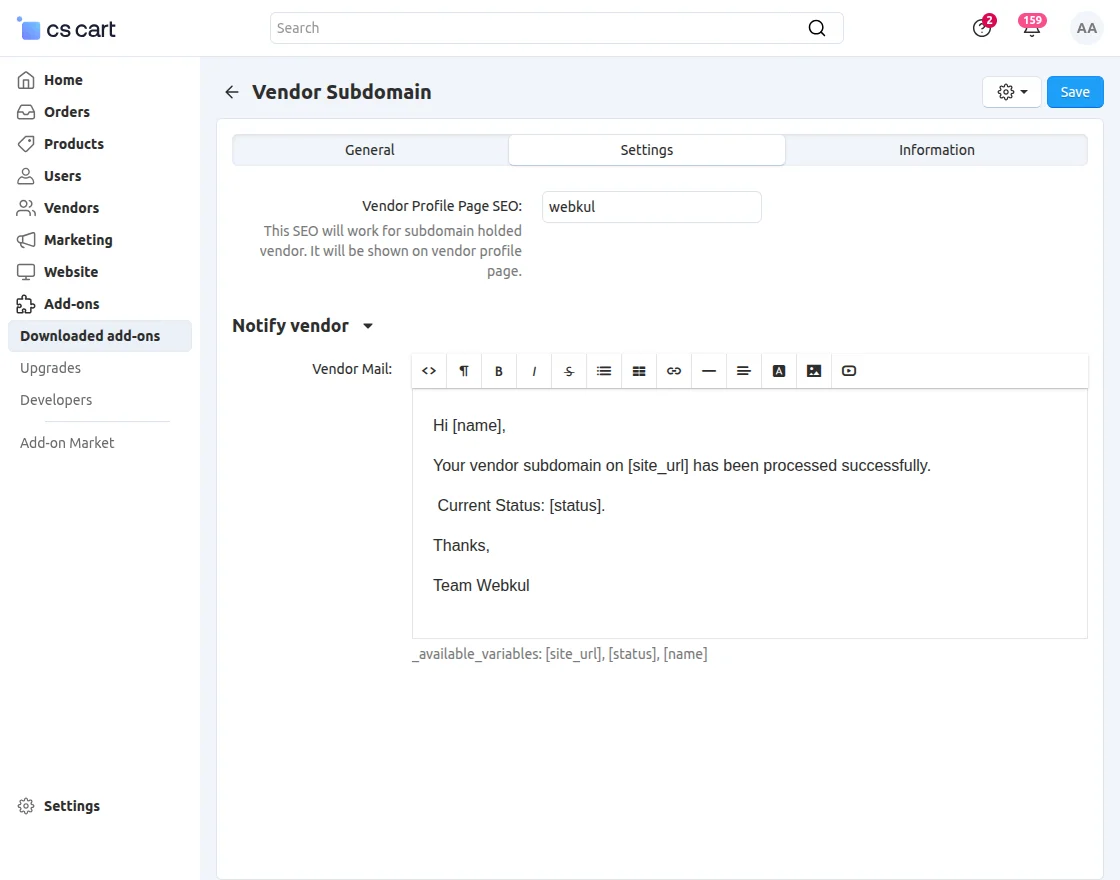

- Click Edit on the CS-Cart seller plan where you want to enable subdomain creation for your vendors.
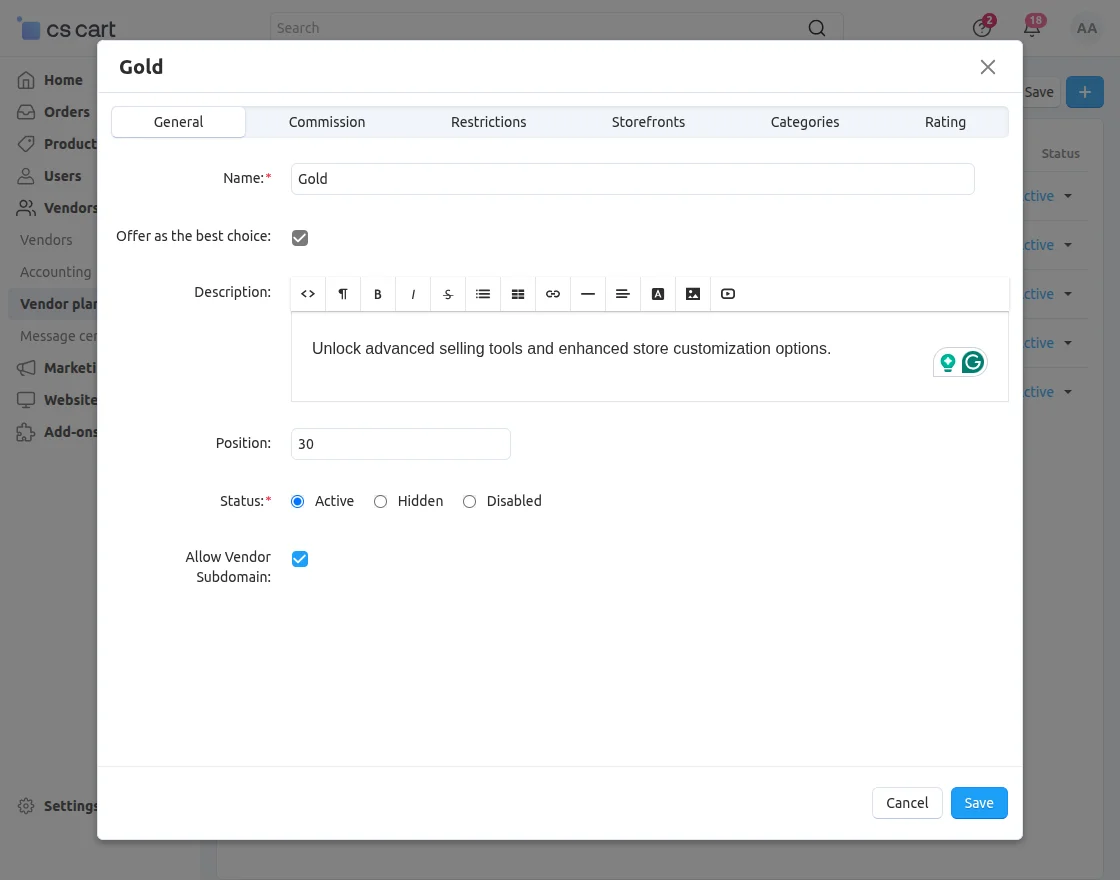
- You will see an option to enable vendor subdomains. Check the box to allow vendors to create their subdomains.
Vendors on a plan that includes subdomain access will see an option in their panel to set their desired subdomain.
Admin Adding a Subdomain for a Vendor
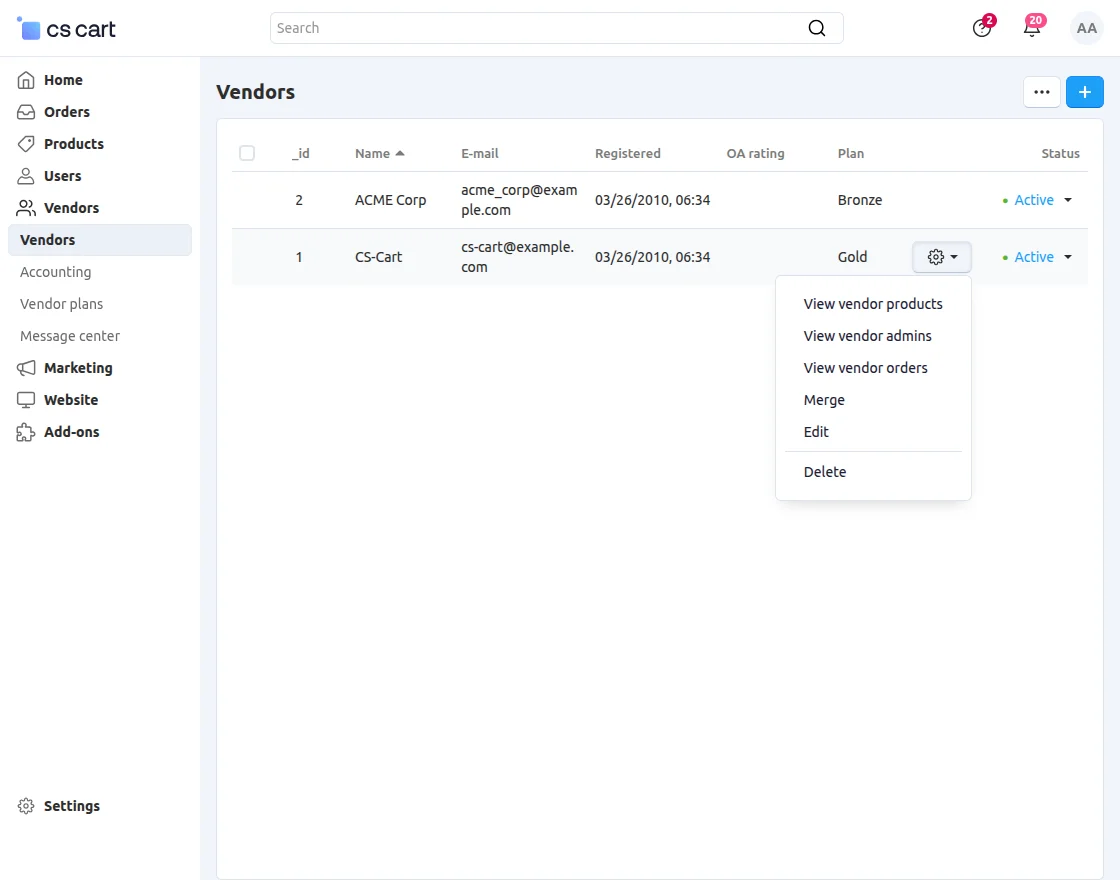
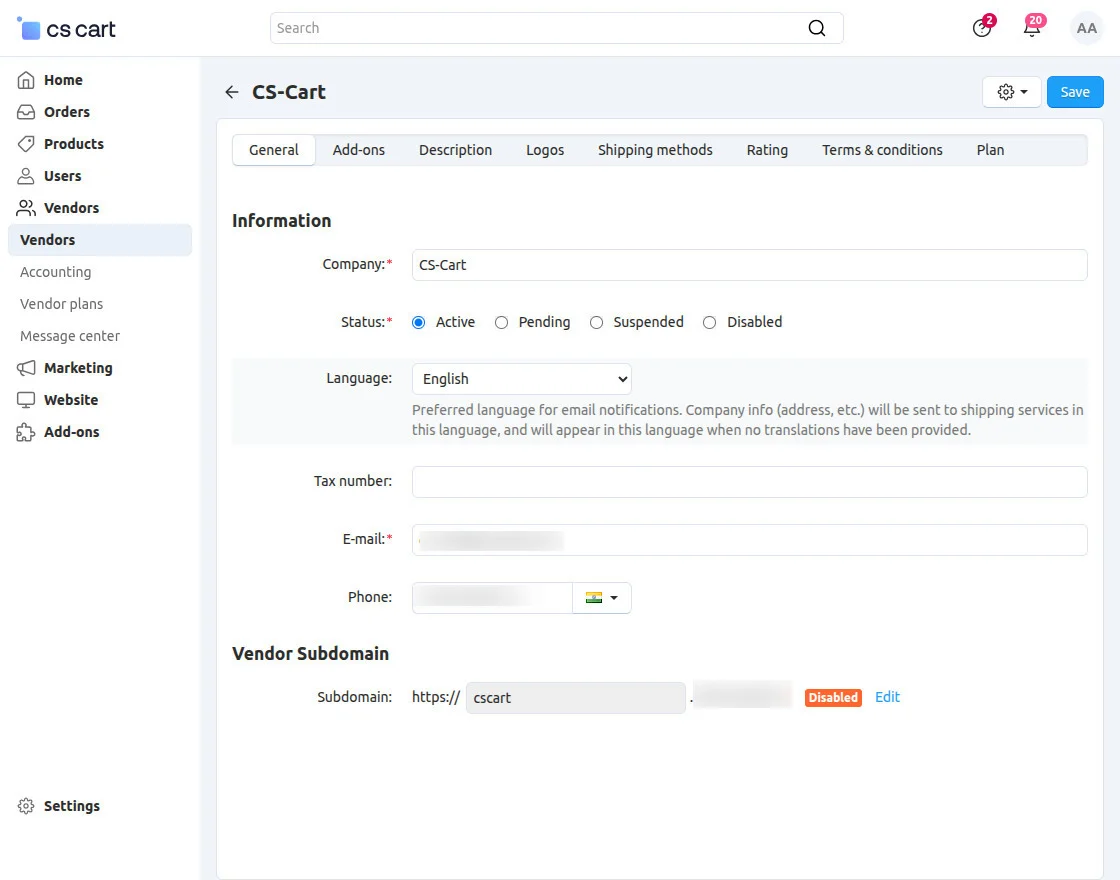
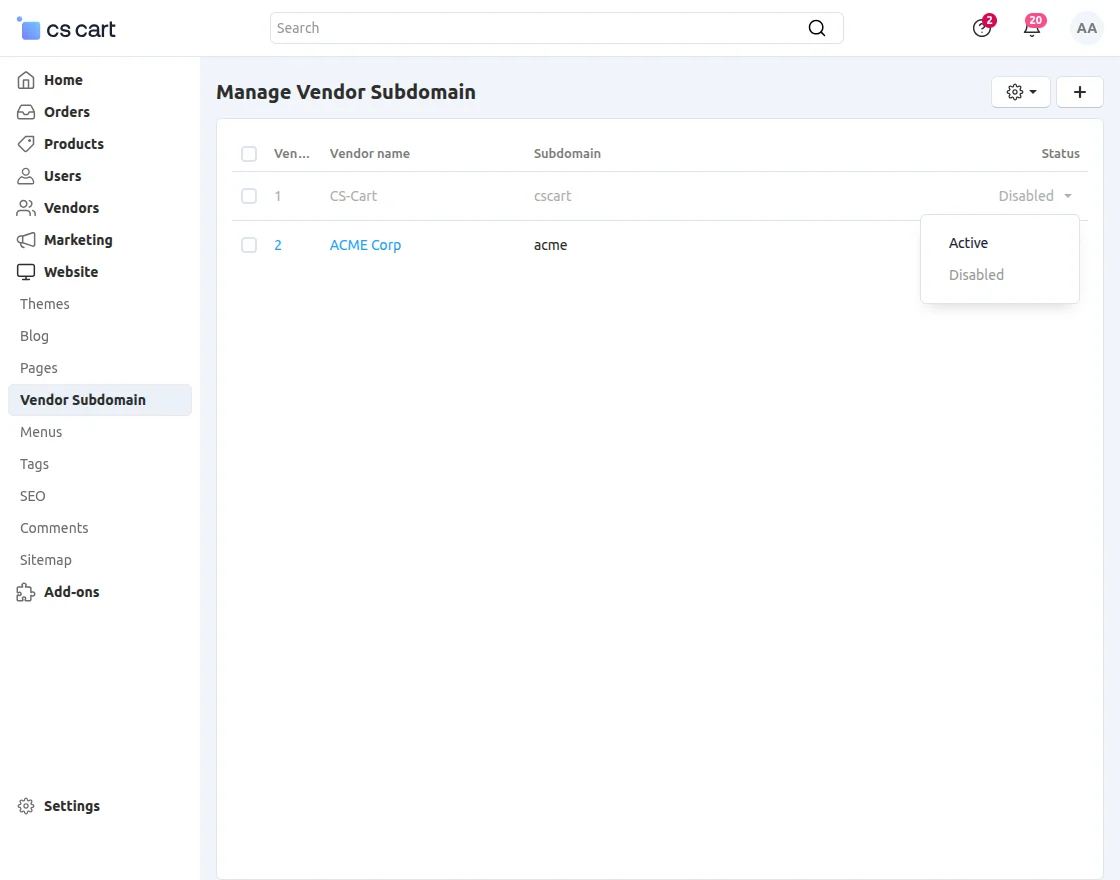
After activating, the vendor subdomain status will become Active.
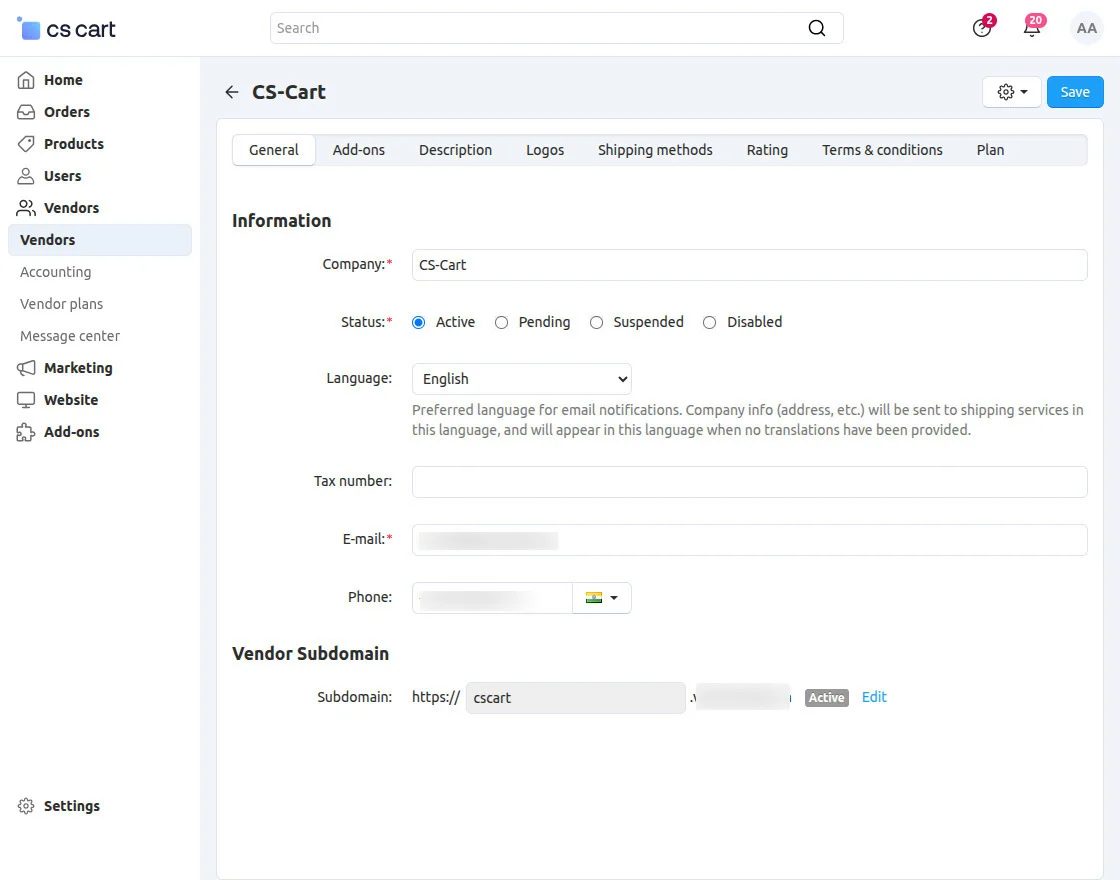
Note: The admin can edit a vendor’s subdomain URL using the Edit button.
After clicking Save, the subdomain will be disabled and sent to the admin for approval.
Subdomain at Vendor End
The vendors can also add a subdomain for their store from the vendor panel.
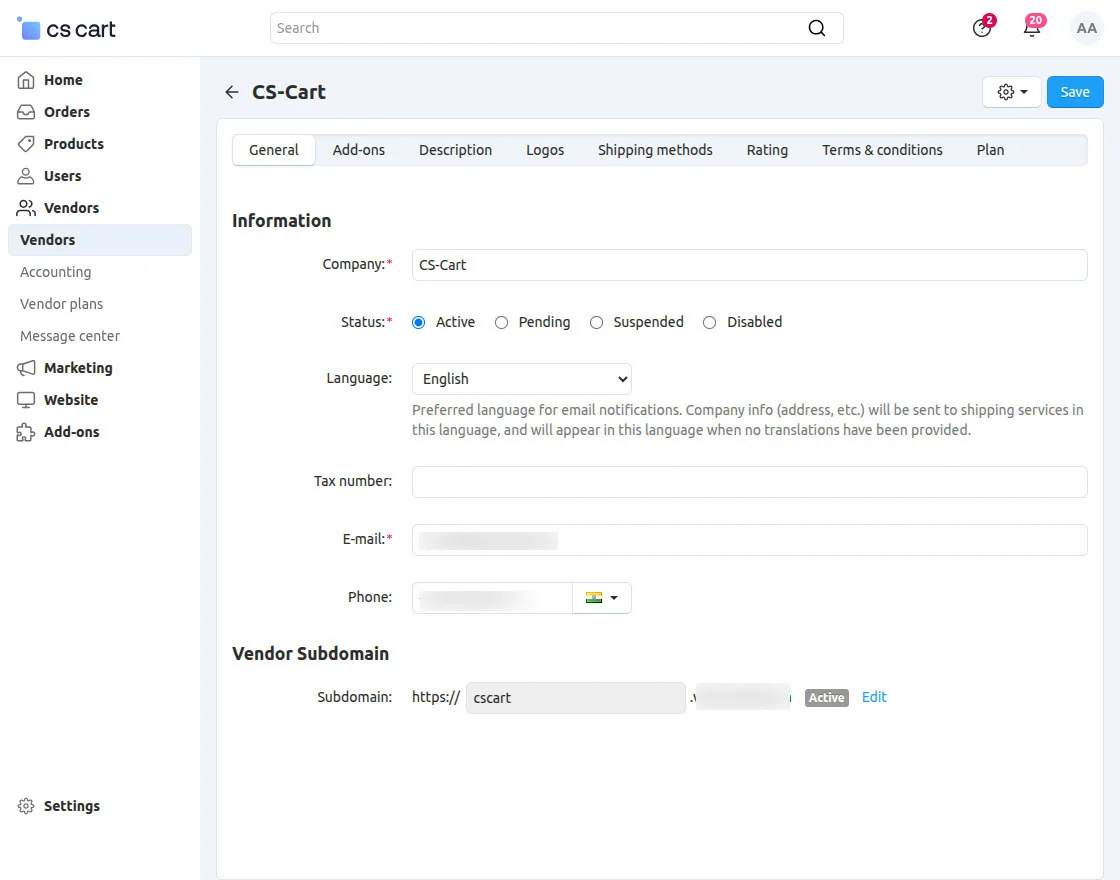
The vendor subdomain becomes active only after admin approval.
If the vendor edits their subdomain later, it will again be sent to the admin for approval.
View At Storefront
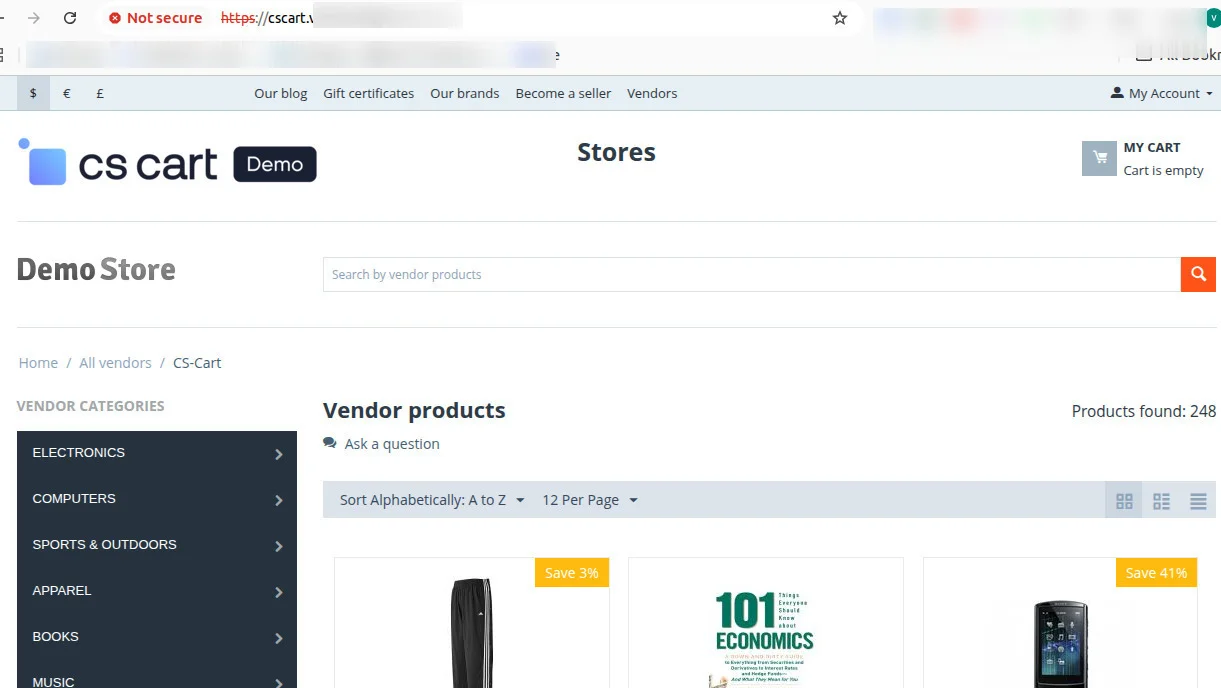
Sellers with an active subdomain will have all sessions, including login, available across their subdomain. This feature works only if enabled by the admin.
Become a Seller
Vendors can enter their desired subdomain while registering on the platform.
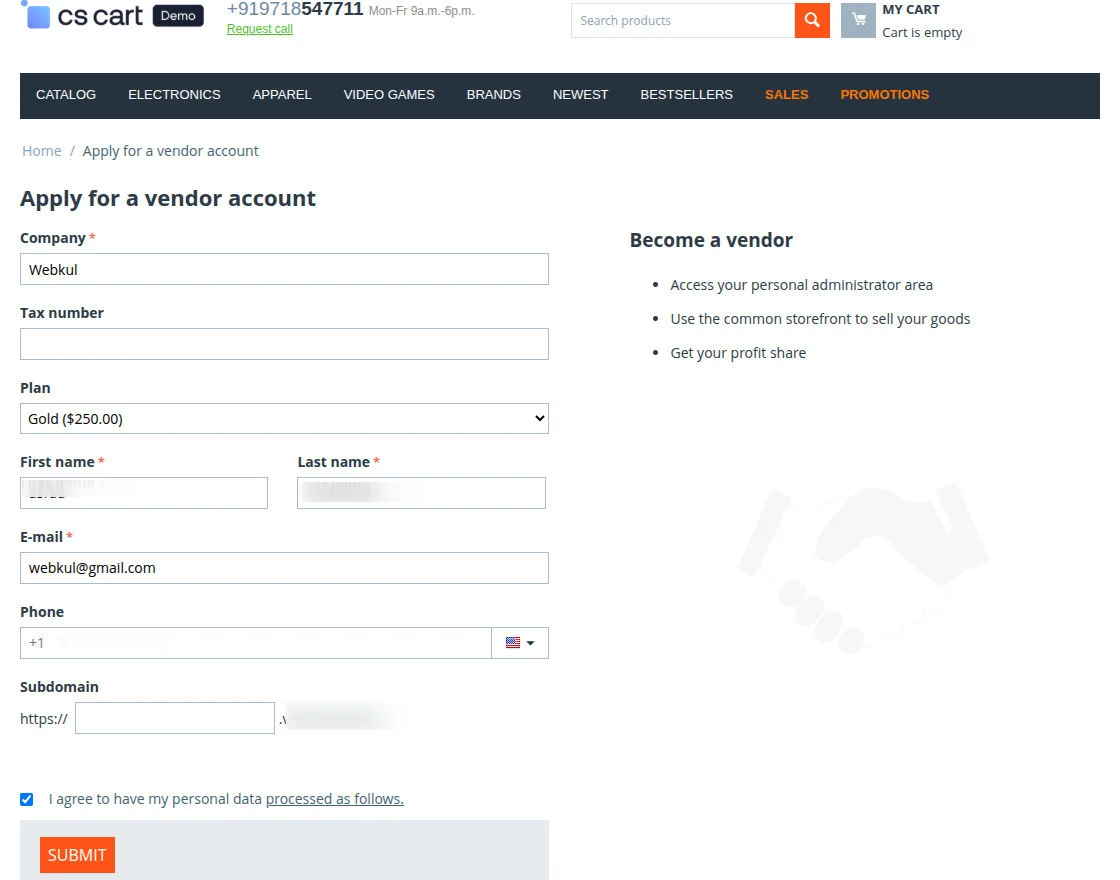
This sets up their store URL immediately, making it ready for use.
Support
If you have any questions, suggestions, or customization requests, feel free to contact us at [email protected] or submit a ticket at webkul.uvdesk.com.
Explore our premium-quality CS-Cart Extensions to enhance your store functionality.
You can also explore our CS-Cart Development Services and Quality CS-Cart add-ons.
Current Product Version - 1.5
Supported Framework Version - 4.16.x, 4.17.x, 4.18.x, 4.19.x
